The /build page, top to bottom.
Each card on /build does one thing. Read whichever section you have a question about, or scroll the whole page once for a complete tour.
1. Pick a Scenario (the cell)
The first card on /build is the cell picker. A cell is a Map + Era + Scenario combo. Each cell has its own seed mission with its own anchor pool, so the build options below adapt to whatever cell you pick.
Worked example
Pick Caucasus / Modern / SEAD. You'll see anchor counts in the right-hand preview panel update, typically something like 4 red-SAM anchors, 2 blue-CAP anchors, 3 red-CAP anchors. Those are the ceilings for this cell.

2. Recipe preset (optional shortcut)
A recipe is a one-click composition preset. Picking sead_normal auto-fills the sliders below to a sane SEAD-style threat layout. You can still tune individual sliders after picking.
Skip this card if you know exactly what you want, or pick a recipe close to your target and tune from there. There's a full recipes guide with what each one does.
3. AI composition sliders
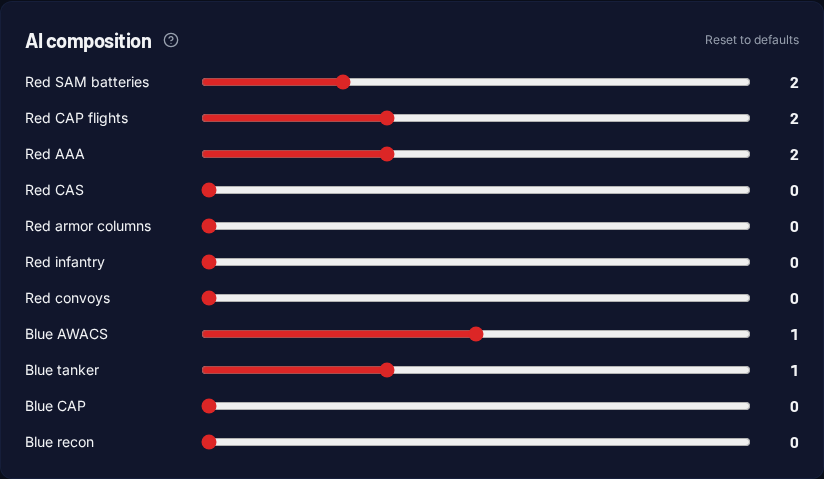
The composition card has one slider per role. Set red_sam = 3and you'll get three enemy SAM sites placed at three of the cell's red-SAM anchor points.
Each slider has a maxreflecting the engine's reasonable upper bound (e.g. red SAMs cap at 8). Anchor pools may cap you lower. If you ask for 5 SAMs but the cell has only 3 SAM anchors, you get 3. Look at the preview panel for the per-role anchor pool so you know the real ceiling.
Click Reset to defaults any time to go back to the sane mid-difficulty starting point (3 red SAMs / 2 red CAP / 2 red AAA / 1 blue AWACS / 1 blue tanker).
4. Per-slot aircraft (advanced)
By default the engine fills player slots from the era pool. Modern Caucasus picks from F-16C, F/A-18C, F-15E, AH-64D, etc. Want to force a specific slot to a specific aircraft? Open this card, find the slot row, and pick the aircraft from the dropdown.
This is also where you set up an asymmetric mission (e.g. one F-14 vs three MiG-29s) by picking a coalition-blue aircraft for one slot and coalition-red for the others.
5. Doctrine controls
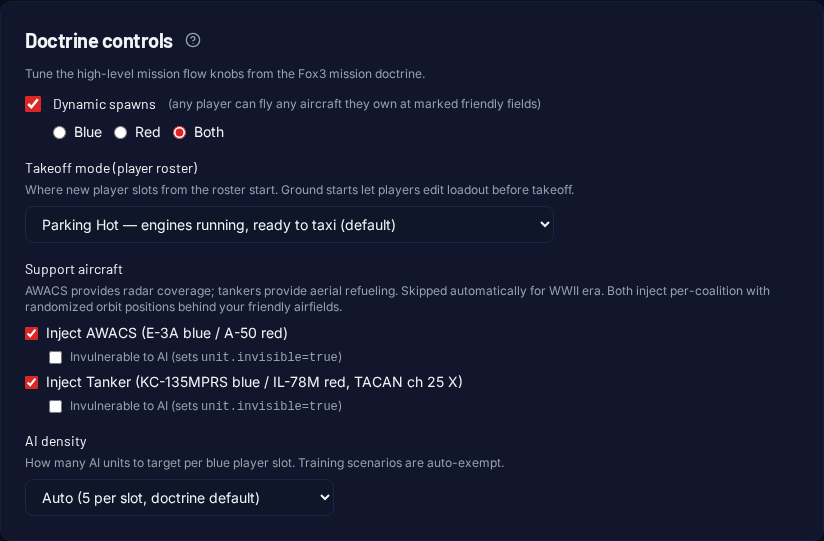
The Doctrine controls card holds the high-level mission-flow knobs:
- Dynamic spawns. A DCS 2.9 feature that lets any player spawn any aircraft they own at a marked friendly airbase. Great for mixed-module groups. Coalition switch lets you enable for blue, red, or both.
- Takeoff mode. Where player roster slots start. Cold = engines off, full procedure. Hot = engines running, ready to taxi. Air start = already flying.
- Support aircraft. Auto-inject AWACS and tankers per coalition with reasonable orbit positions. WWII era skips them automatically.
- AI density. How many AI-only flights to seed in around your composition. Auto / Light / Normal / Dense / Off.
- Real Weather (add-on). Bakes current real-world weather into the mission at build time. The engine pulls live METAR for the map's region (a real reporting airfield, biased to higher elevation so cloud bases clear terrain) and writes real clouds, wind, temperature, QNH and visibility into the .miz, so it has real weather anywhereyou fly it: your own server, single-player, any host. It's a snapshot as of build time; if you also run it on a Fox3 server with the Real Weather add-on, the server refreshes weather live at mission start. This is a separate add-on, independent of your plan tier and of hosting a server.
6. Deploy to server (Pro+)
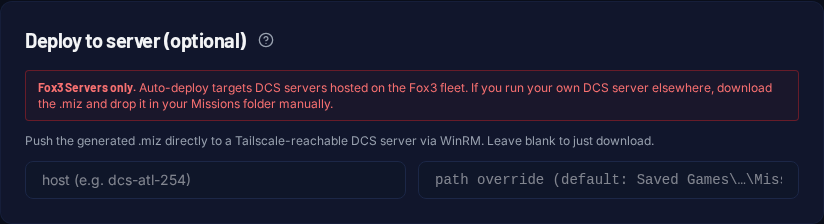
If your DCS server runs on the Fox3 fleet, fill in the host name (Tailscale name like dcs-atl-254) and the engine pushes the built .miz straight to Saved Games\DCS\Missions on the remote machine. No download needed.
Leave both fields blank to download the .miz normally. Full how-to in the Deploy guide.
PvP mode
Toggle PvP mode in the Player roster card to expose the red roster editor next to blue. When ON:
- The build form sends
pvp_mode: trueto the engine. - AI density scaling counts both coalitions (blue + red player slots).
- A 60% multiplier dampens the AI screen, so the human-vs-human fight stays the main event.
Five PvP starter cells are live (Caucasus/Modern, Caucasus/ColdWar, Syria/Modern, Sinai/Modern, Falklands/ColdWar). Pick the Skirmish scenario to use them.
Build options (F10 / labels / formation)
The Build Options subsection has four toggles that override DCS server config at build time:
- F10 map: force on, force off, or leave to server config.
- Labels: full / abbreviated / off / server-config-wins.
- AWACS: auto (era-aware default), always inject, never inject.
- AI flight formation: Combat Spread, Trail, Wedge, Line Abreast, Echelon Left/Right, or seed-author default. Player groups always keep their own formation; helicopters retain seed-author choice.
Per-life respawn variation
Fox3MenuKit v1.3 (every Fox3 mission has it) re-rolls threat positions when you respawn. Specifically: when the composition resolver picks 3 or more fragments for the same role + coalition, two-thirds are held in lateActivation as a respawn pool. On each death, one is destroyed and a fresh pick is activated from the pool.
You see the variation directly: the red CAP that killed you on life one might appear at a different airfield (or as a different airframe) on life two. Mission-wide 30s debounce prevents thrash from slot-swapping.
Want the 30-second version?
The Quickstart walks the same flow in 4 numbered steps. No extra options, no jargon, just go.
Take me to /build